2.1 Introduction
Select the mode you want to use by clicking on the tabs on the top left corner.
- Annotation: In annotation mode the TranscriptionPortal helps you to annotate audio files using a workflow that includes automatic tools like Automatic Speech Recognition (ASR) and manual tools like OCTRA (Orthographic Transcription).
- Summarization & Translation: If you want to know more about the content of your audio recordings this mode is the right one. Additionally to ASR it summarizes the transcript using AI and translates the result to a preferred language.
Add your audio files via Drag&Drop to the table (see 2.1) or via the “ADD FILES” button. Only compatible files will appear in the table. Compatible files are:
- Audio files: WAVE 16bit PCM (*.wav)
- Annotation formats (with same name as the audio file): Plain text (.txt), AnnotJSON (_annot.json), TextGrid (*.TextGrid), TextTable (.Table)

Figure 2.1: Drag & Drop files to the table
Because the TranscriptionPortal only supports audio files with one channel (mono) it will ask you in some cases to choose. Select the preferred channel. If you are not sure, you can select both.
Each column represents a step of the transcription chain. Deselect the checkbox under the column’s label if you want to skip this step. For further information move the mouse over the column’s label.
Click on the “2. CHECK OPTIONS” button. A window opens with a list of options. On this window you may skip some of the steps (like skipping Manual Transcription) by unchecking the checkboxes above the corresponding step. Depending on the selected mode the set options differs. If all is OK, click on “OK” to apply the options on the queued tasks.
Now click on the button “3. START PROCESSING”. The processing starts.
Each line represents a task and each step has it’s own status. The status is represented as an icon (see Fig 2.2). You may move the mouse over the status icons to see more information about the current process.

Figure 2.2: Each column contains an icons showing the actual status of the process.
- When a step has finished you can download the results. For that move the mouse over an status icon. A popover appears including the result from the service provider and conversion to other annotation formats. Hover over a file to see two buttons: a button with an eye icon for viewing the file and another with a cloud for downloading the result to your computer. (see 2.3)
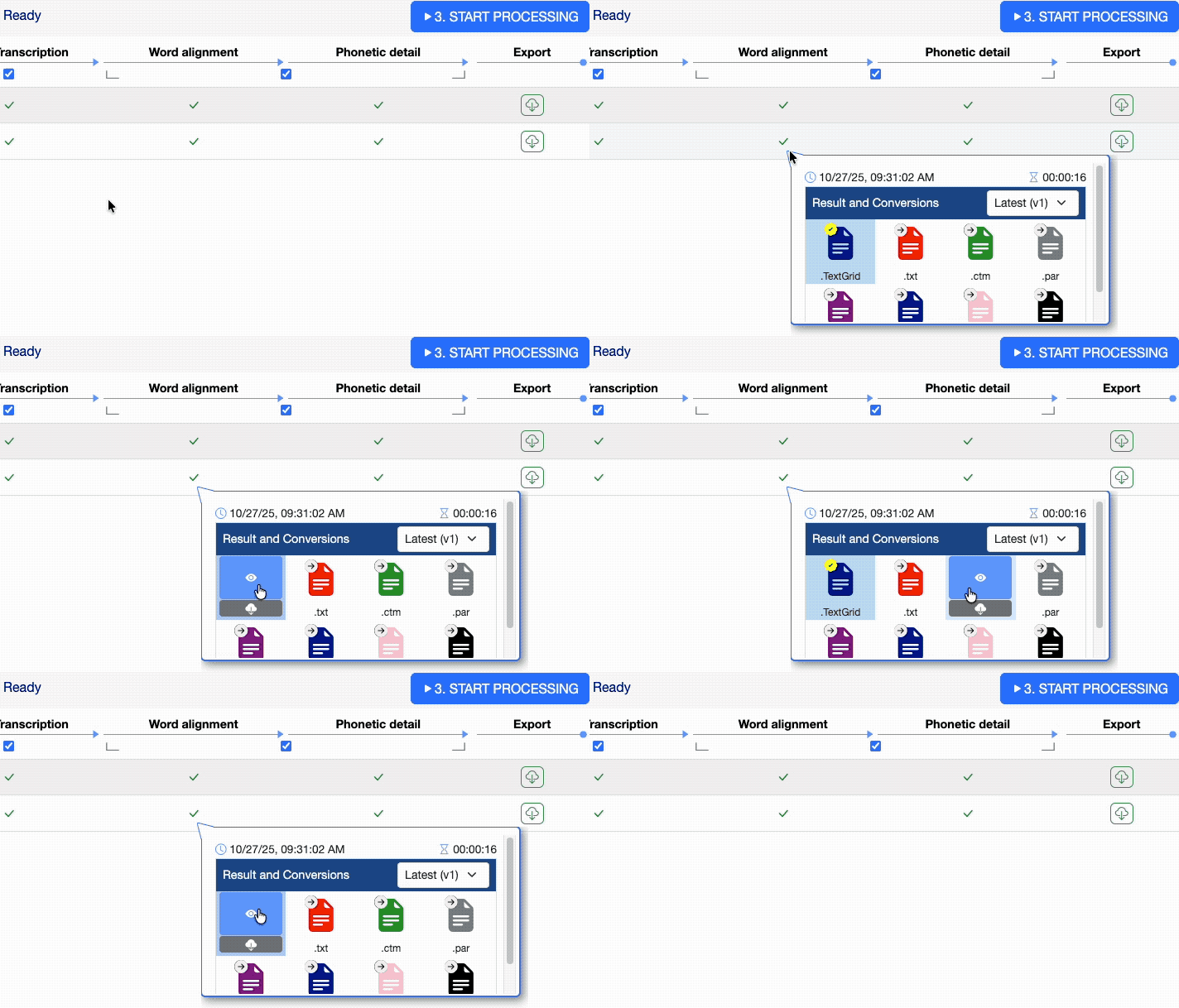
Figure 2.3: Drag & Drop files to the table
- There are two steps that need to be processed manually by the user: Manual Transcription (OCTRA) and Phonetic Detail (Emu-webApp). As soon manual interaction is needed you need to click on the status icon to open the tool (see Fig 2.4).
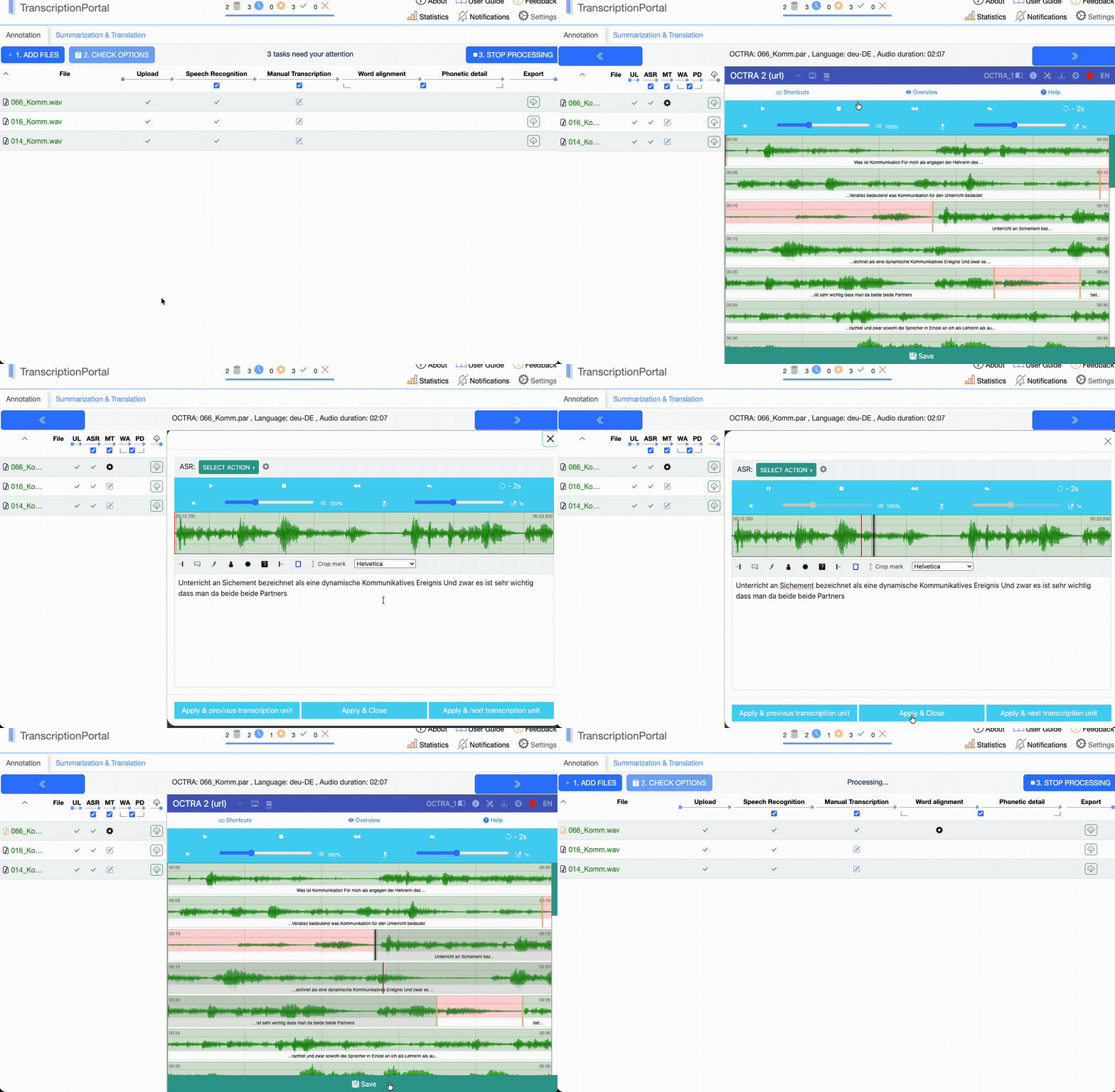
Figure 2.4: Opening a tool in the TranscriptionPortal
- As soon as all enabled steps where processed successfully you can download all results of a line by clicking on the green download button on the right of a line. If you want to download the results multiple lines or of one specific column see Chapter 2.2.